
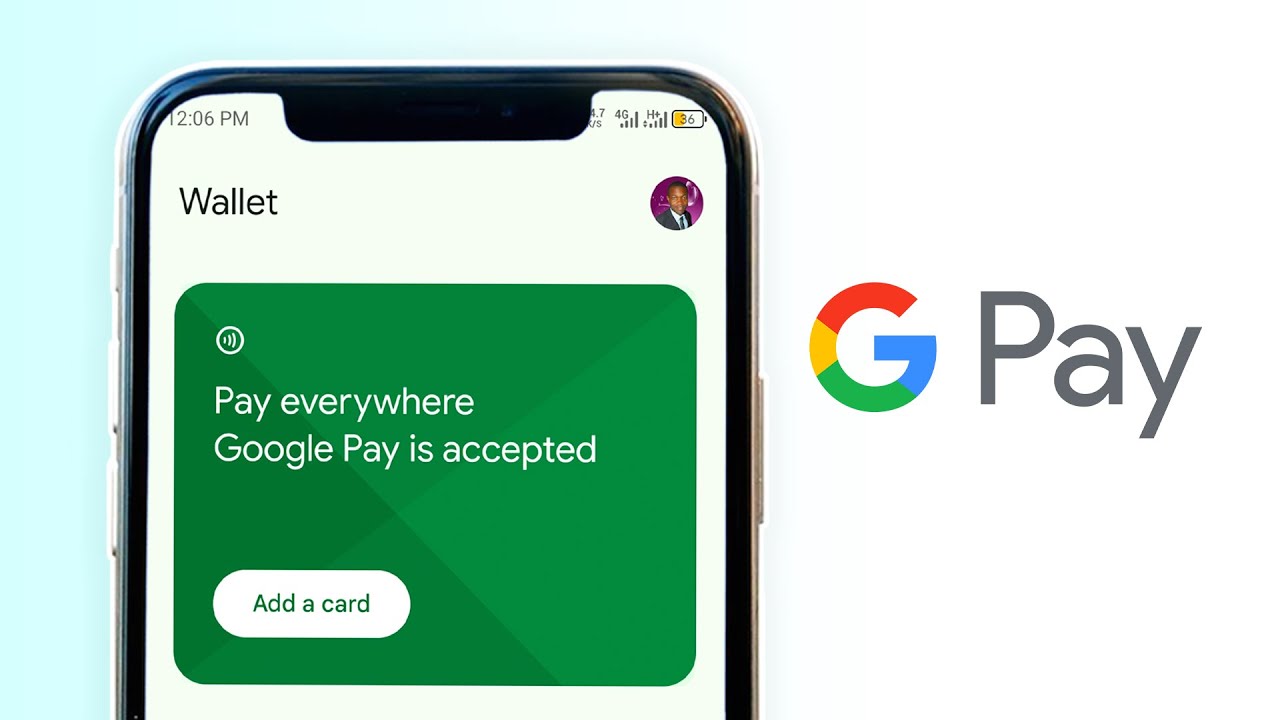
Paying online can sometimes be a hassle. You find what you want to buy, proceed to checkout, and then have to enter your card details before completing the payment. Google Pay is designed to make that process easier, allowing you to pay without entering your card details every time.
Google Pay and Google Wallet officially launched in Nigeria on October 28, 2026. But before you start using them, there are a few things you should know, including which Nigerian banks support the service, how to set it up on your phone, and where you can use it.
When did Google Pay and Google Wallet launch?
Google’s digital payment journey started in 2011, when it launched the original Google Wallet. In 2015, the company introduced Android Pay, and in 2018, it brought its payment services together under the Google Pay brand. Google reintroduced the Google Wallet app in 2022, giving users a place to store their payment cards and other digital items.
Before coming to Nigeria, the services had already reached millions of people around the world. In September 2024, Google said millions of people in more than 90 countries and territories had used Google Wallet. In May 2024, the company also reported that hundreds of millions of people used Google Pay to check out with retailers in more than 180 countries. These figures refer to different services and uses, but they show the scale Google had reached before the Nigerian launch.
Now, Nigerian users with eligible bank cards can begin exploring the service, although not every bank or card is supported.
Which Nigerian banks support Google Pay?
At launch, Google Wallet supports eligible cards from four Nigerian banks. These are the cards currently listed by Google:
- FirstBank: Mastercard debit cards.
- GTBank: Mastercard debit and prepaid cards.
- UBA: Mastercard credit, debit and prepaid cards, as well as Visa prepaid cards.
- Zenith Bank: Mastercard credit, debit and prepaid cards.
Not every card issued by these banks will necessarily work. Support depends on the particular card, so having an account with one of the listed banks does not automatically mean every card you own can be added.
Cards from other banks and payment providers are not supported yet as of the time of this publication. If your card is not on the list, you may have to wait until Google and the card issuer make it available.
What is the difference between Google Pay and Google Wallet?
The names can be confusing, especially because Google has changed how its payment services work over the years.
Google Wallet is the app where you can store supported payment cards and other digital items. Google Pay is the payment service you use to make payments online, in apps and at compatible physical payment terminals.
In simple terms, Wallet helps you keep your cards in one place, while Google Pay lets you use supported cards to pay.
Google Wallet can also store other items, such as loyalty cards, event tickets and boarding passes, where those features are supported.
How to set up Google Pay in Nigeria
Before you begin, make sure you have an Android phone, a supported bank card and access to the phone number or verification method your bank uses.
Follow these steps below to add your card:
- Download and open Google Wallet from the Google Play Store.
- Tap Add to Wallet.
- Select Payment card.
- Choose New credit or debit card.
- Scan your card using your phone’s camera or enter the card details manually.
- Follow the instructions to accept the terms and conditions.
- Complete any verification required by your bank.
Once your bank verifies the card, it should appear in Google Wallet and be ready for supported payments.
If the card cannot be added, do not assume that the app is faulty. The card may not be eligible, or your bank may require additional verification.
What phone do you need to use Google Pay?
You need a compatible Android phone with Google services and a supported version of Android. Google Wallet generally requires Android 9 or later for payment cards, although requirements can change.
You also need to secure your phone with a screen lock, such as a PIN, password or supported biometric method.
If you want to pay by tapping your phone against a payment terminal in a physical store, your phone must have NFC, which stands for Near Field Communication. This technology allows your phone to communicate with a compatible payment terminal over a short distance.
You can check whether your phone has NFC by opening its Settings app and searching for “NFC”. If the option is available, make sure it is switched on.
How to pay with Google Pay in a store
Once your card has been added successfully, paying in a physical store is straightforward, provided the store has a compatible contactless terminal.
First, check that NFC is switched on. Unlock your phone and hold it close to the contactless payment reader. Wait for the terminal to respond and follow any instructions displayed on the screen.
You may need to verify your identity using your phone’s screen lock or another supported security method, depending on the device and transaction.
Not every shop in Nigeria will accept this type of payment. A shop may accept bank cards but still lack a contactless terminal, so it is worth checking before relying on your phone to pay.
Can you use Google Pay to pay online?
Google Pay can also be used for payments on participating websites and in supported apps.
When shopping online, look for the Google Pay payment option at checkout. If it is available, select it and follow the instructions to complete your payment using an eligible card.
This can save you from manually entering your card details each time you make a purchase. However, not every website or app offers Google Pay, and availability can depend on the merchant and the payment setup it uses.
What to do if your card cannot be added
If you try to add your card and Google Wallet rejects it, there are a few things you can check.
Check whether your card is supported. Confirm that both your bank and the specific type of card you own appear on Google’s supported list. Not every card issued by a participating bank is eligible.
Complete your bank’s verification. Your bank may ask you to confirm the card through an SMS, banking app or another verification method. Make sure you follow the instructions provided.
Update the app and your phone. An outdated version of Google Wallet, Google Play services or Android can sometimes cause problems. Check for available updates.
Check your phone’s security settings. Make sure you have a screen lock enabled and that your device meets Google’s security requirements.
Contact your bank if the problem continues. If your card appears to be supported but you still cannot add it, your bank may be able to explain whether the card is eligible or why verification failed.
You can also be checking Google’s official support page . Google from time to time updates the page with the latest information on supported Nigerian cards and payment requirements.
Where can you use Google Pay in Nigeria?
There are two main ways to use Google Pay: online and in physical stores.
Online, you can use it on participating websites and in apps that offer Google Pay at checkout. In physical stores, you can use it at compatible contactless payment terminals, provided your phone and card meet the requirements.
Google Wallet can also hold supported loyalty cards, event tickets and boarding passes, although the availability of these features depends on the specific service or provider.
The important thing to remember is that the service’s arrival in Nigeria does not mean it will work everywhere. Your bank card must be supported, and the merchant must offer a compatible payment option.
Last updated: October 29, 2026